Can you walk me through your overall IT experience and key projects?
What kind of Power BI solutions have you implemented end-to-end?
How have you used ADF (Azure Data Factory) in your projects?
What was your role in Power Apps and Power Automate implementations?
Power BI – Core Skills
2️⃣ Power BI Desktop & Service
1️⃣ Difference between Power BI Desktop and Power BI Service
Power BI Desktop → Development tool (create reports, data models, DAX, transformations).
Power BI Service → Cloud platform (publish, share, collaborate, schedule refresh, governance).
2️⃣ Deployment Approach (Desktop → Service)
Develop & test report in Desktop
Validate data model & performance
Publish to Service Workspace
Configure Gateway (if on-prem data)
Set Scheduled Refresh
Apply RLS & Permissions
Promote to higher workspace (Dev → Test → Prod)
3️⃣ What are Workspaces? How do you manage access?
Workspaces → Collaboration containers for reports, dashboards & datasets
Used for Dev/Test/Prod separation
Access Roles:
Admin → Full control
Member → Edit & publish
Contributor → Publish only
Viewer → Read-only
Access managed via:
Azure AD security groups (preferred)
Direct user assignment
App-level access for business users
Power BI – Core Skills -
Reports & Dashboards
1️⃣ How do you gather & translate business requirements into reports?
Conduct stakeholder workshops / interviews
Identify KPIs, metrics & business definitions
Understand data sources & refresh needs
Create mockups / wireframes
Define data model & relationships
Build iterative prototype → take feedback → refine
2️⃣ Difference between Report and Dashboard
Report → Multi-page, interactive, built in Power BI Desktop
Dashboard → Single-page summary, built in Power BI Service
Report = Detailed analysis
Dashboard = High-level snapshot (tiles from reports)
3️⃣ How do you optimize report performance?
Use Star Schema model
Remove unnecessary columns
Optimize DAX measures
Reduce visuals per page
Use Import mode when possible
Enable Aggregation tables
Monitor using Performance Analyzer
Power BI – Core Skills
Data Import & Modeling
1️⃣ How do you handle data from multiple sources?
Connect using Power Query
Perform data cleansing & transformation
Standardize formats (date, currency, keys)
Create common keys for joins
Merge/Append queries as needed
Build a centralized data model
Validate data consistency before publishing
2️⃣ Relationships: One-to-Many vs Many-to-Many
One-to-Many (1:*)
One unique value in parent table
Multiple related rows in child table
Example: Customer → Orders
Most recommended & efficient
Many-to-Many (:)
Multiple matches on both sides
Example: Students ↔ Courses
Requires bridge table for better performance
3️⃣ What is Star Schema? Have you implemented it?
Data modeling approach with:
Fact table (transactions, measures)
Dimension tables (Customer, Date, Product)
Fact table at center → dimensions around it (star shape)
Improves performance & clarity
Yes, implemented in multiple Power BI projects for optimized reporting and scalable models.
Power BI – Core Skills
DAX (Calculated Columns & Measures)
1️⃣ Difference between Calculated Column and Measure
Calculated Column
Computed row by row
Stored in the model (increases size)
Used for relationships / categorization
Measure
Calculated at query time
Depends on filter context
Used for aggregations (SUM, COUNT, YTD, etc.)
More memory efficient
2️⃣ Context in DAX
Row Context
Calculation happens per row
Exists in calculated columns
Example:
Sales[Qty] * Sales[Price]
Filter Context
Applied by slicers, filters, visuals
Measures respond dynamically
Modified using
CALCULATE()
👉 CALCULATE() transforms filter context.
3️⃣ DAX for YTD Calculation
Sales YTD =
TOTALYTD(
    SUM(Sales[Amount]),
    'Date'[Date]
)
OR using CALCULATE:
Sales YTD =
CALCULATE(
    SUM(Sales[Amount]),
    DATESYTD('Date'[Date])
)
4️⃣ How do you optimize DAX performance?
Use Star Schema
Avoid unnecessary calculated columns
Use variables (VAR) in measures
Prefer measures over calculated columns
Reduce use of complex iterators (e.g., SUMX)
Optimize relationships (1:* preferred)
Monitor with Performance Analyzer
6️⃣ Visualizations
1️⃣ When do you use Matrix vs Table?
Table
Flat structure (rows & columns)
No grouping or hierarchy
Used for detailed transaction-level data
Matrix
Supports row/column grouping
Enables hierarchies & subtotals
Used for summary reports (e.g., Year → Month → Product)
👉 Use Matrix for analysis, Table for raw details.
2️⃣ How do slicers impact performance?
Each slicer adds filter context
Multiple slicers increase query complexity
High-cardinality fields (e.g., Customer ID) slow performance
Sync slicers across pages can increase load time
Best Practice:
Use low-cardinality fields
Limit number of slicers per page
Avoid unnecessary cross-filtering
3️⃣ What is Drill-through & how is it implemented?
Drill-through → Navigate from summary page to detailed page based on selected value.
Implementation Steps:
Create a new detail page
Add a field to Drill-through filter pane
Design detailed visuals
Right-click value → Select Drill-through page
👉 Used for deep analysis without cluttering main report
============================================================
Power BI – Core Skills
Maps & Filters
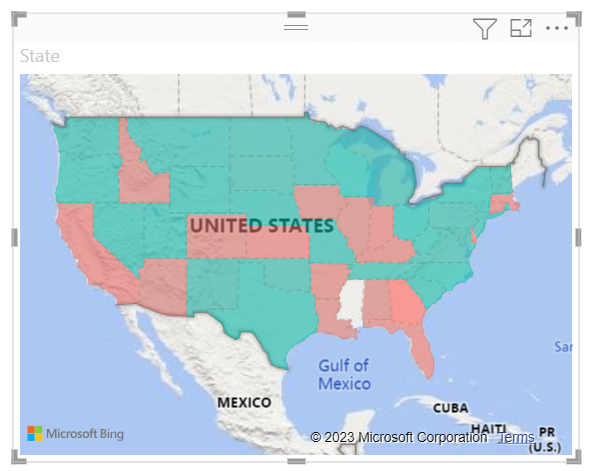
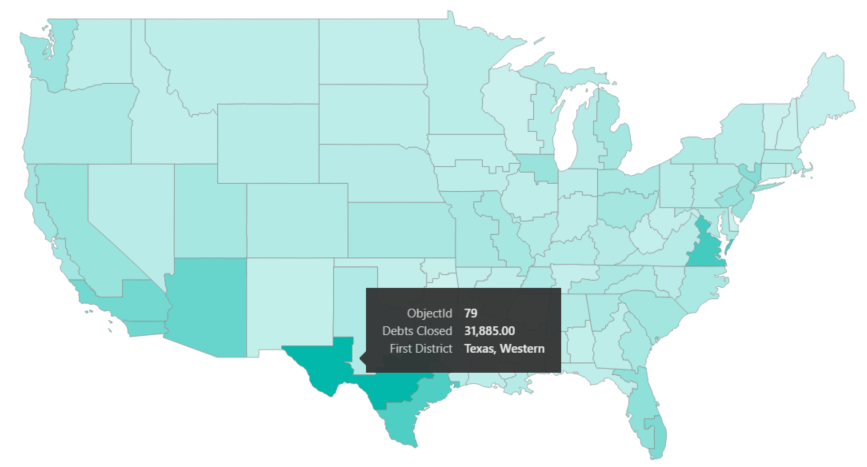
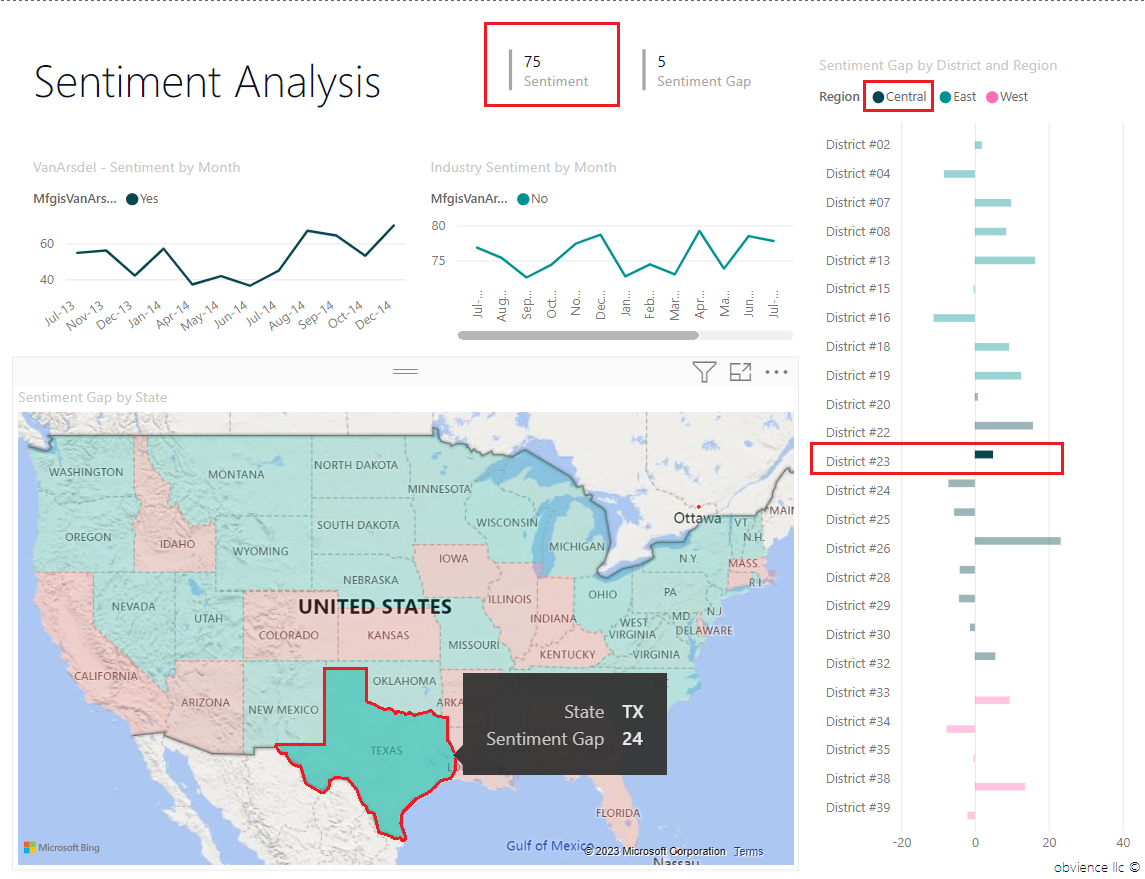
1️⃣ Difference between Filled Map and Shape Map
Filled Map
Uses Bing Maps (online)
Best for country/state/city level data
Auto-detects geographic fields
Requires internet
Shape Map
Uses custom TopoJSON files
Best for custom regions (sales territories, zones)
Works offline
More flexible for non-standard boundaries
👉 Use Filled Map for standard geo data, Shape Map for custom regions.
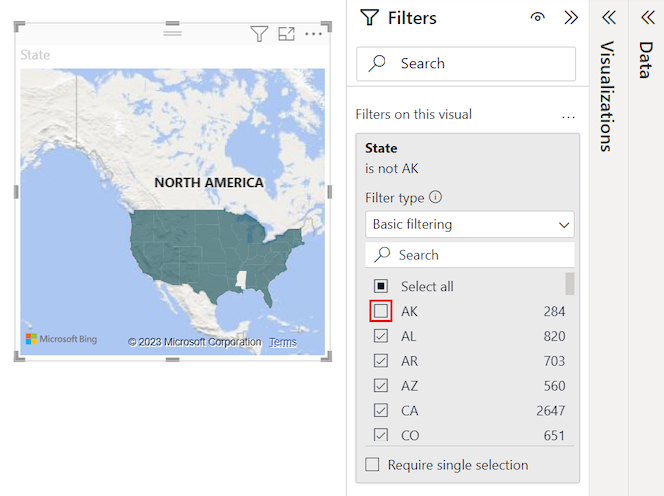
2️⃣ Page-level vs Report-level vs Visual-level Filters
Visual-level Filter
Applies to only one visual
Used for specific chart control
Page-level Filter
Applies to all visuals on that page
Report-level Filter
Applies to entire report (all pages)
👉 Scope increases from Visual → Page → Report.
3️⃣ Have you implemented Drill-down and Drill-through together?
Yes.
Drill-down → Navigate within same visual (Year → Quarter → Month)
Drill-through → Navigate to another detailed page
Used together for:
Hierarchical analysis (drill-down)
Detailed investigation (drill-through)
Power BI – Core Skills
Time Intelligence (YTD, MTD, QTD, YOY)
1️⃣ How do you create YTD / YOY Growth measures?
YTD Measure
Sales YTD =
TOTALYTD(
    SUM(Sales[Amount]),
    'Date'[Date]
)
Last Year Sales
Sales LY =
CALCULATE(
    SUM(Sales[Amount]),
    SAMEPERIODLASTYEAR('Date'[Date])
)
YOY Growth %
YOY Growth % =
DIVIDE(
    [Sales] - [Sales LY],
    [Sales LY]
)
👉 Use a proper Date table connected to fact table.
2️⃣ What is SAMEPERIODLASTYEAR?
Returns the same date range from previous year
Used inside
CALCULATE()Enables Year-over-Year comparison
Works only with a continuous Date table
3️⃣ Issues if Date table is not marked properly?
Time intelligence functions won’t work correctly
YTD / YOY calculations may return incorrect values
Missing dates cause gaps in trends
Errors in filter context behavior
👉 Always:
Create a separate Date dimension
Ensure no missing dates
Mark as Date Table in model view
Power BI – Core Skills
Publishing & Sharing
1️⃣ Steps to publish report to Power BI Service
Finalize report in Power BI Desktop
Click Publish
Select target Workspace
Validate dataset & report in Service
Configure Gateway (if needed)
Set Scheduled Refresh
Apply RLS & permissions
Share via App or direct access
2️⃣ What are Gateways? When are they required?
Gateway = Secure bridge between on-premises data and Power BI Service
Required when data source is:
SQL Server (on-prem)
Excel on local server
Any on-prem database
Not required for:
Cloud sources (Azure SQL, SharePoint Online, etc.)
👉 Enables scheduled refresh & live connection.
3️⃣ Difference between App and Workspace sharing
Workspace Sharing
Direct access to users
Used for developers / internal team
Users see full workspace content (based on role)
App Sharing
Published from workspace
Used for business users
Controlled & read-only access
More secure & scalable
👉 Workspace = Collaboration
👉 App = Controlled distribution
=====================================================================
Power BI – Core Skills
Advanced Formatting
1️⃣ How do you implement Conditional Formatting?
Select visual → Go to Format pane
Choose field → Click fx (Conditional formatting)
Apply based on:
Rules (e.g., >100 = Green)
Field value (color from DAX measure)
Color scale
Can apply to:
Background color
Font color
Data bars
Icons
👉 Best practice: Use DAX measure for dynamic logic.
2️⃣ What are Tooltip Pages?
Custom report pages shown on hover
Used to display additional details without clutter
Steps:
Create new page
Enable Tooltip = On
Set page size → Tooltip
Assign page under visual → Tooltip section
👉 Improves UX & detailed insights.
3️⃣ How do you implement Dynamic Titles?
Create a DAX measure:
Dynamic Title =
"Sales Report - " & SELECTEDVALUE('Date'[Year], "All Years")
Then:
Select visual → Title → Click fx
Bind title to the measure
👉 Title changes based on slicer/filter selection.
=======================================================
======================================================
Power Apps (Canvas & Model-Driven)
1️⃣1️⃣ Canvas Apps
1️⃣ Difference between Canvas App and Model-Driven App
Canvas App
UI-first approach (drag & drop design)
Full control over layout
Connects to multiple data sources
Best for custom UI & task-based apps
Model-Driven App
Data-first approach (Dataverse-driven)
Auto-generated UI
Based on tables, forms, views
Best for complex business processes
👉 Canvas = Flexible UI
👉 Model-Driven = Structured enterprise apps
2️⃣ How do you connect Power Apps to SharePoint / Dataverse?
Go to Data → Add Data Source
Select:
SharePoint → Provide site URL → Choose list
Dataverse → Select tables directly
Use formulas like:
Patch()Collect()Filter()LookUp()
3️⃣ What is Delegation?
Delegation = Processing data at data source level instead of locally
Improves performance
Avoids 500/2000 record limit issue
Non-delegable functions cause warning (blue underline)
👉 Always use delegable functions when working with large data.
4️⃣ How do you handle large datasets?
Use Delegation-friendly queries
Apply indexed columns (SharePoint)
Use Dataverse for enterprise-scale data
Filter data early (server-side)
Avoid loading full dataset into collections
Implement pagination / lazy loading
👉 Optimize data at source, not in app.
=============================================================
Power Apps (Canvas & Model-Driven)
Model-Driven Apps
1️⃣ When would you choose Model-Driven App over Canvas?
When using Dataverse as primary data source
Complex business processes & relationships
Need for security roles & governance
Standardized UI is acceptable
Enterprise-scale applications
👉 Choose Model-Driven for process-driven, data-centric apps.
2️⃣ Business Rules vs Plugins
Business Rules
No-code / low-code
Runs on form (client-side & server-side basic logic)
Used for validations, field visibility, required fields
Limited complexity
Plugins
Written in C#
Server-side execution
Handles complex validations & integrations
Runs on Create / Update / Delete events
👉 Business Rules = Simple logic
👉 Plugins = Complex backend logic
3️⃣ What is a Solution in Power Platform?
A Solution is a container for components:
Apps
Tables
Flows
Plugins
Security roles
Used for:
ALM (Dev → Test → Prod)
Deployment & version control
Types:
Managed
Unmanaged
👉 Solution = Packaging & deployment mechanism.
=================================================================
Power Apps (Canvas & Model-Driven)
Inventory Management App
1️⃣ What was the Architecture?
Power Platform-based architecture:
Model-Driven App → Inventory operations (Create/Update stock)
Dataverse → Tables (Products, Stock, Vendors, Transactions)
Power Automate → Approval workflows & notifications
Plugins (C#) → Stock validation & business rules
Power BI → Inventory analytics dashboard
👉 Scalable, secure, and fully integrated within Power Platform.
2️⃣ How did you manage Roles & Security?
Used Dataverse Security Roles
Admin → Full access
Inventory Manager → Create/Approve
Store User → Read/Update limited
Implemented:
Role-based access control (RBAC)
Business Unit-level security
Field-level security (for cost fields)
Row-level security where required
👉 Ensured least-privilege access model.
3️⃣ Did you implement Approvals?
Yes.
Used Power Automate Approval flow
Triggered on:
Stock request above threshold
Purchase order creation
Multi-level approval:
Supervisor → Finance → Admin
Email & Teams notifications enabled
Status updated automatically in Dataverse
👉 Fully automated approval lifecycle integrated with app.
==============================================================
Power Automate
1️⃣4️⃣ Workflow Creation
1️⃣ Difference between Instant, Automated, and Scheduled Flows
Instant Flow
Triggered manually (button click)
Used for ad-hoc tasks
Example: Send report on demand
Automated Flow
Triggered by an event
Example: When item is created in SharePoint
Scheduled Flow
Runs at fixed intervals
Example: Daily data sync at 8 AM
👉 Instant = Manual
👉 Automated = Event-based
👉 Scheduled = Time-based
2️⃣ How do you handle error handling in flows?
Use Scope actions (Try–Catch pattern)
Configure Run After settings
Use Terminate action for controlled failure
Log errors into:
SharePoint / Dataverse table
Send failure notifications (Email/Teams)
Enable retry policies for transient failures
👉 Always design flows with controlled failure handling.
3️⃣ What are Concurrency Controls?
Controls how many flow runs execute simultaneously
Helps prevent:
Duplicate processing
Data conflicts
Configured in:
Trigger settings → Concurrency Control
Can limit to 1 run at a time for sequential processing
👉 Used for data consistency & performance control.
==============================================================
Power Automate
Approval Flows
1️⃣ How do you implement Multi-Stage Approvals?
Use Power Automate → Start and wait for an approval
Design sequential stages:
Stage 1 → Manager
Stage 2 → Finance
Stage 3 → Admin
Use Condition after each approval
Proceed only if status = Approved
Update status field in Dataverse/SharePoint after each stage
👉 Can be Sequential or Parallel approvals based on business need.
2️⃣ How do you store Approval History?
Create an Approval History table/list (Dataverse/SharePoint)
Store:
Request ID
Approver name
Decision (Approve/Reject)
Comments
Timestamp
Use Append record action after each approval stage
👉 Ensures audit trail & reporting capability.
3️⃣ How do you handle Delegation in Approvals?
Use built-in Reassign option in approval email
Configure Alternate approver logic in flow
Check Out-of-Office
Use backup approver field
Maintain delegation mapping table (Manager → Delegate)
Dynamically route approval using lookup
👉 Ensures business continuity during leave/unavailability.
=============================================================
=============================================================
SharePoint Online
1️⃣6️⃣ Office Tenant Setup
1️⃣ Steps involved in setting up an Office 365 Tenant
Register tenant via Microsoft 365 Admin Center
Verify custom domain
Configure:
Users & Groups
Licenses
Security policies (MFA)
Setup SharePoint Online, Teams, Exchange
Configure:
Conditional Access
Data Loss Prevention (DLP)
Create governance & naming conventions
👉 Foundation: Identity, Security, Compliance first.
2️⃣ How do you manage User Roles & Licenses?
Create users in Azure AD / Entra ID
Assign:
Admin roles (Global, SharePoint, etc.)
Security groups
Assign licenses:
Microsoft 365 E3/E5
Power BI Pro
Power Apps/Automate
Use Group-based licensing (best practice)
Review access periodically
👉 Follow least-privilege principle.
3️⃣ Best Practices for Governance
Define naming conventions
Use Security Groups instead of individual users
Implement MFA & Conditional Access
Setup DLP policies
Control external sharing
Monitor via Audit Logs
Maintain Dev/Test/Prod environments
👉 Governance = Security + Control + Standardization.
==============================================================
SharePoint Online
Team Sites & Communication Sites
1️⃣ Difference between Team Site and Communication Site
Team Site
Collaboration-focused
Connected to Microsoft 365 Group
Used by internal team (documents, tasks, lists)
Members can contribute content
Communication Site
Broadcast-focused
Not group-connected (by default)
Used for announcements, news, policies
Mostly read-only for users
👉 Team Site = Collaboration
👉 Communication Site = Information sharing
2️⃣ How do you manage Permissions?
Use SharePoint Groups:
Owners (Full Control)
Members (Edit)
Visitors (Read)
Prefer Security Groups (Azure AD)
Avoid item-level permissions (performance impact)
Break inheritance only when necessary
Periodic access review
👉 Follow least privilege & group-based access.
3️⃣ What are Site Features and List Features?
Site Features
Enable functionality at site level
Example: Publishing, Document ID service
List Features
Enable functionality at list/library level
Example: Versioning, Content Types
👉 Features extend capabilities at different scopes.
==================================================================
SharePoint Online
SharePoint Workflows & Libraries
1️⃣ How do you create Document Libraries?
Go to Site Contents
Click New → Document Library
Provide name & description
Configure:
Columns (metadata)
Versioning settings
Permissions (if needed)
Enable content types (if required)
👉 Best practice: Use metadata instead of folders.
2️⃣ What are Content Types?
Reusable collection of:
Columns (metadata)
Document templates
Workflows
Used to standardize document structure
Can be created at:
Site level (recommended)
Library level
👉 Example: Invoice, Contract, Policy (each with different metadata).
3️⃣ How do you manage Versioning?
Go to Library Settings → Versioning Settings
Enable:
Major versions (1.0, 2.0)
Major & Minor versions (Drafts)
Set version limit (e.g., keep last 50)
Enable Require Check-in/Check-out (if needed)
👉 Versioning ensures document history & audit tracking.
===================================================================
Data Integration (ADF)
1️⃣9️⃣ Azure Data Factory
1️⃣ What is a Pipeline in Azure Data Factory?
A Pipeline is a logical grouping of activities
Used to orchestrate:
Data movement
Data transformation
Control flow tasks
Can include:
Copy Activity
Data Flow
Stored Procedures
Web/Custom activities
👉 Pipeline = Workflow orchestration in ADF.
2️⃣ Difference between Copy Activity and Data Flow
Copy Activity
Moves data from Source → Destination
No complex transformation
Fast & lightweight
Used for ETL data movement
Data Flow
Performs transformations
Data cleansing, joins, aggregations
Runs on Spark cluster
Used for complex ETL logic
👉 Copy = Move data
👉 Data Flow = Transform data
3️⃣ How do you schedule Pipelines?
Create a Trigger
Schedule trigger (time-based)
Tumbling window trigger
Event-based trigger
Configure:
Start date & time
Frequency (Hourly/Daily/etc.)
Publish changes
👉 Trigger controls pipeline execution timing.
======================================================================
Soft Skills
2️⃣0️⃣ Communication & Team Skills
1️⃣ Tell me about a challenging stakeholder
Stakeholder had unclear & changing KPIs
Conducted focused requirement workshop
Created mockups & data definitions document
Set clear sign-off checkpoints
Result: Reduced rework & improved trust
👉 Key: Clear communication + structured approach.
2️⃣ How do you handle requirement changes?
Assess impact on scope, timeline, effort
Discuss trade-offs with stakeholders
Update BRD / user stories
Get formal approval before implementation
Follow change control process
👉 Control scope, avoid scope creep.
3️⃣ Have you worked independently in client-facing roles?
Yes.
Managed end-to-end delivery
Conducted client meetings & demos
Handled requirement gathering & UAT
Provided post-production support
👉 Comfortable in independent & ownership-driven roles.
=======================================================================
1️⃣ Power BI report is slow — How do you troubleshoot?
Use Performance Analyzer to identify slow visuals
Check data model (Star Schema?)
Remove unnecessary columns & relationships
Optimize DAX (avoid heavy iterators like SUMX)
Reduce visuals per page
Check cardinality & relationship direction
Validate Import vs DirectQuery mode
👉 80% issues come from poor data modeling.
2️⃣ Power Apps hitting delegation limit — What do you do?
Identify non-delegable functions (blue underline)
Replace with delegable alternatives
Filter at data source level
Use indexed columns (SharePoint)
Move large data to Dataverse if needed
Avoid loading full dataset into collections
👉 Always push logic to server-side processing.
3️⃣ Approval flow is stuck — How do you debug?
Check Run History in Power Automate
Identify failed action
Verify:
Trigger condition
Approval response pending?
Expired approval?
Check Run After settings
Validate connectors & permissions
Add logging (Compose / Scope blocks)
👉 Debug from trigger → each action step-by-step.
4️⃣ Users complain about incorrect YOY numbers — What will you check?
Is the Date table marked properly?
Is relationship active between Date & Fact?
Are there missing dates?
Check
SAMEPERIODLASTYEAR()logicVerify filter context (slicers applied?)
Validate base measure logic
👉 Most issues come from improper date model.
5️⃣ SharePoint permissions broken inheritance — How do you fix?
Go to Library/List → Manage Access
Identify unique permissions
Decide:
Restore inheritance (recommended)
Or reconfigure correctly
Remove direct user permissions
Assign access via SharePoint groups / Azure AD groups
Audit access periodically
👉 Avoid excessive item-level permission breaks (performance risk).
================================================================
================================================================
================================================================
Based on your profile (Power BI + Power Apps + Power Automate + SharePoint + ADF), here are technical deep-dive questions only — senior level:
🔹 Power BI – Advanced
1️⃣ Explain VertiPaq engine and how compression works
VertiPaq is an in-memory columnar storage engine (used in Import mode).
Stores data column-wise, enabling high compression.
Compression techniques:
Dictionary Encoding (unique values stored once)
Value Encoding (small integers instead of original values)
Run-Length Encoding (RLE) (compress repeated values)
Data split into segments (~1M rows each).
Low-cardinality columns compress best.
👉 Smaller model size = Faster Storage Engine scans.
2️⃣ Difference between Storage Engine vs Formula Engine
Storage Engine (SE)
Scans compressed data
Multi-threaded
Handles basic aggregations (SUM, COUNT)
Very fast
Formula Engine (FE)
Executes DAX logic
Single-threaded
Handles iterators, complex logic
Can be performance bottleneck
👉 Optimize DAX to push work to Storage Engine, reduce FE workload.
3️⃣ How does CALCULATE() modify filter context internally?
Captures existing filter context
Performs context transition (if row context exists)
Adds/replaces/removes filters
Reevaluates expression in new filter context
Internally:
Evaluate filter arguments
Modify filter context
Recalculate expression
👉 CALCULATE() = Core filter context modifier in DAX.
4️⃣ Explain Context Transition with example
Context transition = Converting row context → filter context.
Example:
Total Sales =
SUMX(Sales, Sales[Qty] * Sales[Price])
SUMX creates row context.
If inside a calculated column:
Measure =
CALCULATE(SUM(Sales[Amount]))
CALCULATE() converts current row context into filter context.
👉 Happens when CALCULATE() is used inside row context.
5️⃣ When would you use USERELATIONSHIP()?
When model has multiple relationships between same tables.
One active, others inactive.
Used to activate inactive relationship temporarily inside measure.
Example:
Order Date (active)
Ship Date (inactive)
Sales by Ship Date =
CALCULATE(
    SUM(Sales[Amount]),
    USERELATIONSHIP(Sales[ShipDate], Date[Date])
)
👉 Useful for role-playing date dimensions.
6️⃣ How do you debug complex DAX performance issues?
Use Performance Analyzer
Use DAX Studio
Check query plan
Server timings (SE vs FE time)
Look for:
Heavy iterators (SUMX, FILTER)
High cardinality columns
Bidirectional relationships
Optimize:
Star schema
Reduce calculated columns
Use variables (VAR)
👉 Identify whether bottleneck is SE or FE.
7️⃣ Difference between Import vs DirectQuery vs Composite (Internals)
Import
Data stored in VertiPaq (in-memory)
Fastest performance
Refresh required
DirectQuery
Queries source at runtime
No data stored
Performance depends on source DB
Limited DAX support
Composite
Mix of Import + DirectQuery
Supports Aggregations
More flexible but complex model
👉 Import = Performance
👉 DirectQuery = Real-time
👉 Composite = Hybrid optimization
8️⃣ How does Bidirectional filtering impact performance?
Filters propagate both directions
Increases filter propagation paths
Can create ambiguity & circular dependencies
Forces more FE processing
👉 Use only when necessary (e.g., many-to-many).
Default should be Single direction (1:*).
9️⃣ Explain Aggregation Tables implementation
Used to improve performance for large datasets.
Steps:
Create aggregated summary table (e.g., Sales by Month)
Import it into model
Configure Manage Aggregations
Map aggregation table to detail table
Set storage mode correctly
When query matches aggregation level → Uses aggregated table
Else → Falls back to detailed table.
👉 Reduces scan size drastically.
🔟 How do you implement Incremental Refresh with partitions?
Steps:
Create RangeStart & RangeEnd parameters
Apply filter on date column
Configure Incremental Refresh policy:
Store last X years
Refresh last X days/months
Publish to Service
Service creates partitions automatically
Benefits:
Only refresh recent data
Historical partitions remain untouched
Improves refresh performance
👉 Enterprise-level optimization for large datasets.
================================================================
================================================================
🔹 Power Apps – Advanced
1️⃣ Explain Delegation architecture internally
Power Apps sends delegable queries to data source (SQL, Dataverse, SharePoint).
Query translated into OData/SQL.
Filtering, sorting, aggregation executed server-side.
Only result set returned to client.
Non-delegable functions → processed client-side (500/2000 record limit).
👉 Delegation = Push computation to data source to avoid local limits.
2️⃣ How does Power Apps handle data caching & collection memory limits?
Data is cached temporarily in:
Collections
Local variables
Collections stored in device memory (browser/mobile RAM).
No fixed hard limit, but performance degrades with large collections.
Large datasets increase:
App load time
Memory consumption
Formula recalculation time
👉 Best practice: Avoid loading full datasets into collections.
3️⃣ Difference between Patch vs SubmitForm vs UpdateIf (Performance)
Patch()
Direct record update
More flexible
Faster for single-record updates
Best for custom forms
SubmitForm()
Works with EditForm control
Handles validation automatically
Slight overhead due to form lifecycle
UpdateIf()
Updates multiple records
Often non-delegable
Can cause performance issues on large datasets
👉 Patch = Most efficient & flexible.
4️⃣ How do you design apps for 10k+ records scalability?
Use delegable functions only
Filter at source (avoid Collect full dataset)
Use Dataverse over SharePoint
Use indexed columns
Implement pagination / lazy loading
Reduce controls in galleries
Avoid heavy formulas inside gallery items
👉 Server-side filtering + lightweight UI.
5️⃣ How do you secure Dataverse data at row & column level?
Row-Level Security
Use Security Roles
Business Units
Ownership-based access
Teams for group-level access
Column-Level Security
Enable Field Security Profile
Assign profile to specific users/teams
👉 Dataverse security enforced server-side (not app-level).
6️⃣ Explain Component Library usage in enterprise apps
Centralized reusable UI components
Shared across multiple apps
Ensures:
UI consistency
Maintainability
Version control
Updates in component library propagate to dependent apps
👉 Essential for enterprise governance & standardization.
7️⃣ How do you implement role-based UI rendering dynamically?
Store user role in:
Dataverse table OR
Use
User().Emaillookup
On App start:
Set(varUserRole, LookUp(Roles, Email = User().Email).Role)Use conditional visibility:
Visible = varUserRole = "Admin"
👉 UI hides elements, but security must be enforced in Dataverse.
8️⃣ How do you optimize slow OnStart formulas?
Avoid heavy data loading in OnStart
Move logic to OnVisible of screens
Use
Concurrent()for parallel callsLoad only required data
Avoid nested LookUps
Cache only filtered data
Example:
Concurrent(
   ClearCollect(colProducts, Filter(Products, Status="Active")),
   ClearCollect(colUsers, Users)
)
👉 Keep OnStart lightweight; load data lazily.
🔹 Power Automate – Advanced
1️⃣ Explain Run-After configuration & Parallel branches execution model
Run-After
Defines execution dependency between actions.
Can run after:
Success
Failure
Skipped
Timed out
Used to build Try–Catch–Finally pattern with Scopes.
Parallel Branches
Multiple actions run simultaneously.
Engine executes branches independently.
Flow waits until all parallel branches complete (unless terminated).
👉 Useful for performance optimization & controlled error handling.
2️⃣ What happens internally when Concurrency is enabled?
Multiple flow instances run in parallel threads.
Trigger processes multiple events simultaneously.
Risk:
Data conflicts
Duplicate updates
If set to 1 → Sequential processing (FIFO behavior).
👉 Concurrency improves speed but must be controlled for data consistency.
3️⃣ How do you design Idempotent flows?
Idempotent = Same input processed multiple times → Same result.
Techniques:
Use Unique ID check before insert
Maintain processed flag/status
Use Upsert logic instead of create
Store transaction logs
Avoid blind duplicate writes
👉 Prevents duplicate records during retries.
4️⃣ Difference between Child Flow vs Solution-Aware Flow
Child Flow
Reusable flow triggered by another flow
Requires Solution
Uses “Run a Child Flow” action
Helps modular architecture
Solution-Aware Flow
Created inside a Solution
Supports ALM (Dev → Test → Prod)
Can use connection references
Required for enterprise deployments
👉 Child flow = Reusable module
👉 Solution-aware = ALM-ready deployment
5️⃣ How do you handle API Throttling (429 errors)?
Enable Retry Policy (Exponential backoff)
Reduce concurrency
Add Delay between calls
Batch operations where possible
Use pagination properly
Monitor connector limits
👉 Respect API limits to avoid throttling loops.
6️⃣ How do you implement Transaction Rollback pattern?
Power Automate doesn’t support true transactions, so:
Use Scope (Try)
Track created record IDs
On failure:
Trigger Compensating actions
Delete/undo previously created records
Maintain transaction log table
👉 Implement compensating logic manually.
7️⃣ How to secure sensitive data in flow run history?
Enable Secure Inputs/Outputs in action settings
Use Azure Key Vault for secrets
Avoid storing passwords in variables
Use connection references
Restrict flow run history access via security roles
👉 Secure at connector + action + environment level.
================================================================
================================================================
🔹 SharePoint Online – Advanced
1️⃣ Explain Permission Inheritance Model Architecture
SharePoint follows a hierarchical security model:
Site Collection
Site
Library/List
Folder
Item
By default, permissions inherit from parent.
Breaking inheritance creates unique security scope.
Each unique scope increases:
Permission checks
Performance overhead
👉 Best practice: Use group-based permissions, avoid excessive item-level breaks.
2️⃣ How does SharePoint handle Large Lists (>5000 items) internally?
Uses List View Threshold (5000 items) to prevent heavy SQL queries.
Data stored in SQL Azure backend.
Queries must use indexed columns to avoid full table scans.
If query exceeds threshold → blocked unless indexed.
Supports:
Indexed filtering
Folder partitioning
Modern UI optimized queries
👉 Threshold protects database performance.
3️⃣ What are Indexed Columns and how do they improve performance?
Indexed column = SQL index on a list column.
Improves:
Filter queries
Sorting
Lookup performance
Prevents full table scan.
Required when list >5000 items.
👉 Always index frequently filtered columns.
4️⃣ Difference between Site Collection Admin vs Site Owner
Site Collection Admin
Full control across entire site collection
Cannot be restricted
Manages features & global settings
Site Owner
Full control only for that specific site
Subject to inheritance limits
Cannot override collection-level settings
👉 Site Collection Admin = Highest privilege.
5️⃣ Explain Modern vs Classic Page Rendering Architecture
Classic
ASP.NET-based
Server-side rendering
Uses Master Pages & Page Layouts
Heavy customization (JSLink)
Modern
Client-side rendering (SPFx-based)
React-based components
Faster & responsive
No master page dependency
Better performance & mobile support
👉 Modern architecture is lightweight & cloud-optimized.
6️⃣ How do you migrate large libraries with metadata preservation?
Use:
SharePoint Migration Tool (SPMT)
Migration Manager
PowerShell (PnP)
Ensure:
Content types pre-created
Columns mapped correctly
Migrate in batches
Preserve:
Metadata
Version history
Permissions (if required)
Validate post-migration with audit checks
👉 Plan schema first, migrate data next.
================================================================
================================================================
🔹 Azure Data Factory – Advanced
1️⃣ How does Integration Runtime (IR) work? (Azure vs Self-hosted)
Integration Runtime = Compute infrastructure used by ADF to move & transform data.
Azure IR
Fully managed by Microsoft
Used for:
Cloud-to-cloud data movement
Data Flow (Spark execution)
Auto-scales
No infrastructure management
Self-hosted IR
Installed on on-prem server/VM
Used for:
On-prem → Cloud data movement
Private network access
Maintains secure outbound connection to Azure
Requires maintenance & monitoring
👉 Azure IR = Cloud-native
👉 Self-hosted IR = Hybrid connectivity
2️⃣ Explain Mapping Data Flow execution architecture (Spark clusters)
Built on Azure Databricks / Spark engine
Executes on:
Ephemeral Spark clusters
Steps:
ADF provisions Spark cluster
Data loaded into Spark memory
Transformations executed (Join, Aggregate, Derived Column)
Results written to sink
Cluster auto-terminates after execution
👉 Distributed processing → Handles big data transformations.
3️⃣ Difference between Tumbling Window vs Schedule Trigger
Schedule Trigger
Time-based (e.g., daily at 8 AM)
Independent executions
No dependency between runs
Tumbling Window Trigger
Time-sliced windows (fixed intervals)
Each window depends on previous completion
Ensures:
No data overlap
No missing window
👉 Tumbling Window = Reliable incremental loads
👉 Schedule = Simple time trigger
4️⃣ How do you implement Incremental Load (Watermarking)?
Steps:
Maintain watermark column (LastModifiedDate or ID)
Store last processed value in:
Control table OR
Pipeline parameter
Source query:
WHERE LastModifiedDate > @LastWatermarkAfter successful load → Update watermark value
Handle late-arriving data if needed
👉 Efficient delta loading without full refresh.
5️⃣ How do you handle Pipeline Failure Recovery?
Enable Retry policies
Use:
On Failure path
Alert notifications
Log errors into monitoring table
Implement:
Checkpointing logic
Idempotent design
Use Tumbling Window for guaranteed sequential execution
👉 Design for restartability & idempotency.
6️⃣ How do you parameterize Linked Services securely?
Use ADF parameters in Linked Services
Store secrets in:
Azure Key Vault
Reference Key Vault secret dynamically
Avoid hardcoding credentials
Use Managed Identity where possible
👉 Secure = Key Vault + Managed Identity + Parameterization.
================================================================
================================================================
🔹 Architecture / Cross-Platform
Design an enterprise-grade Inventory System architecture using:
Power Apps
Dataverse
Power Automate
Power BI
ADF
How do you implement Dev → Test → Prod ALM using solutions + pipelines?
Explain your approach for performance tuning across entire Power Platform stack.
If you want, I can now give model answers for senior-level interviews (crisp & strong impact responses).
=======================================================================
=======================================================================
========================================================================
🔥 Top 5 Deep-Dive Questions – Power Apps (Power Fx)
1️⃣ Explain the difference between Patch(), SubmitForm(), and UpdateIf().
When to use each?
Performance implications?
How do they behave with delegation?
2️⃣ What is Delegation in Power Fx?
Which functions are non-delegable?
How do
Filter(),LookUp(),Sort()behave with large datasets?How do you design formulas to avoid delegation warnings?
3️⃣ Explain Record Scope & ThisRecord.
How does
ForAll()create row context?Difference between
ThisItem,ThisRecord, and global variables?Example using nested
ForAll().
4️⃣ Difference between Context Variables, Global Variables, and Collections.
When to use
UpdateContext()vsSet()vsCollect()?Memory impact?
App lifecycle behavior?
5️⃣ How do you optimize complex formulas in Power Fx?
Using
With()for readability & performanceAvoiding multiple data calls inside
ForAll()Reducing nested If statements
Caching data strategically
If needed, I can also provide senior-level model answers with examples.
=====================================================================
=====================================================================
=======================================================================


No comments:
Post a Comment